
How to sign into a Marriott Library computer
Classroom or Lab Computers
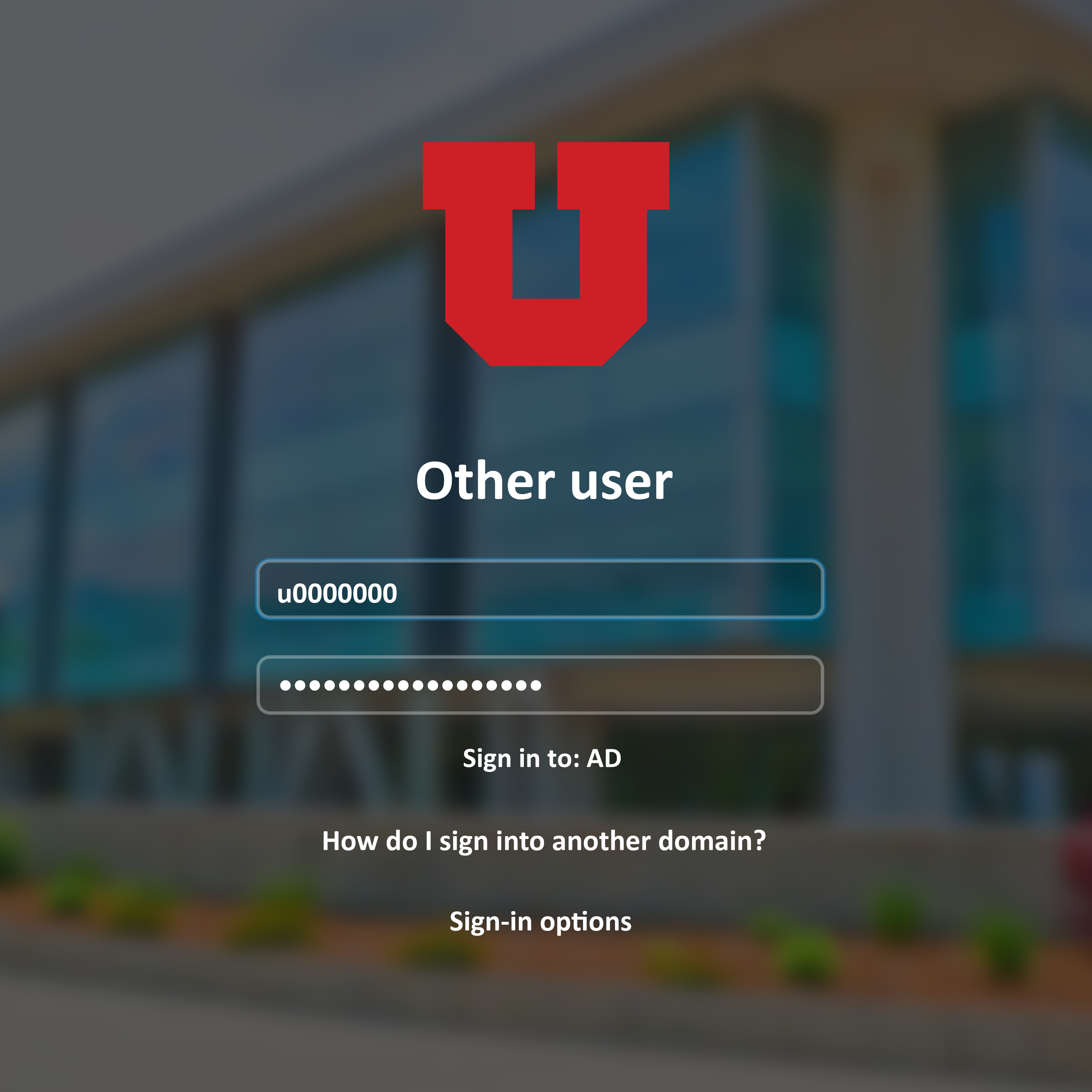
To sign into the computers located at the Marriott Library, sign in with your University credentials (uNID and University password).
If you are not affiliated with the University of Utah, you can get a Guest Pass to sign into the computers at the Knowledge Commons, level 2 of the Marriott Library.
It is required that you are connected to a WiFi network to sign into the laptop. Our Mac laptops are configured to automatically connect to the UConnect WiFi.

 Note: If the login window has a red background instead of a photo of campus, or if it says “One Moment…” please hit the “Refresh” icon until you see a photo of campus in the background of the login screen.
- Login with your uNID@umail.utah.edu, and then select “Next”. Enter your University password and then click “Sign in”. Click on “Approve with U of U Duo” to complete signing in. Approve two-factor authentication (2FA) with Duo app.

- Success! You have signed into the Mac laptop. This process creates a local login on the computer, so it might take a few minutes to load.

If you ever restart the computer, you will need to connect to WiFi to sign in again. If you have signed in once on WiFi, you can select "Switch Login Window" to sign in locally without WiFi. Sign in with your uNID (u0000000) and University password.

- It is required that you are connected to a WiFi network to sign into the laptop. Please click "Configure WiFi" to connect to a network.

Note: If the login window has a red background instead of a photo of campus, please hit the“Refresh” icon until you see a photo of campus in the background of the login screen.
- Login with your uNID@umail.utah.edu, and then select “Next”. Enter your University password and then click “Sign in”. Click on “Approve with U of U Duo” to complete signing in. Approve two-factor authentication (2FA) with Duo app.
- Success! You have signed into the Mac laptop. This process creates a local login on the computer, so it might take a few minutes to load.
When you have signed into the laptop with WiFi once, you can always select “Switch Login Window” and sign in with your uNID and password locally without WiFi.
If you come back to Campus, you will need to sign into the laptop and manually select "UConnect" to use the default saved UConnect configuration.
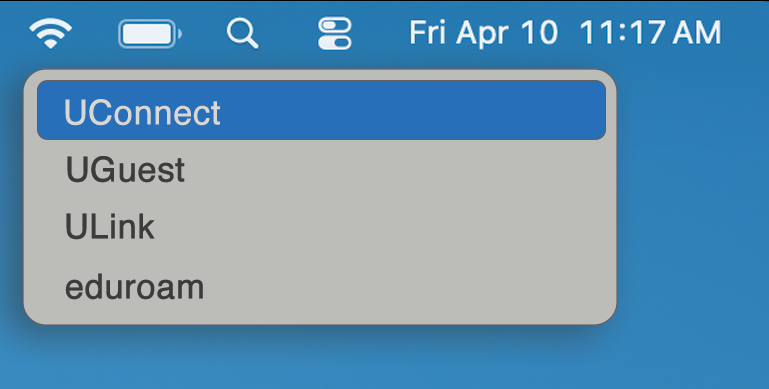
It is required that you are connected to a WiFi network to sign into the laptop. Our Windows laptops are configured to automatically connect to the UConnect WiFi.
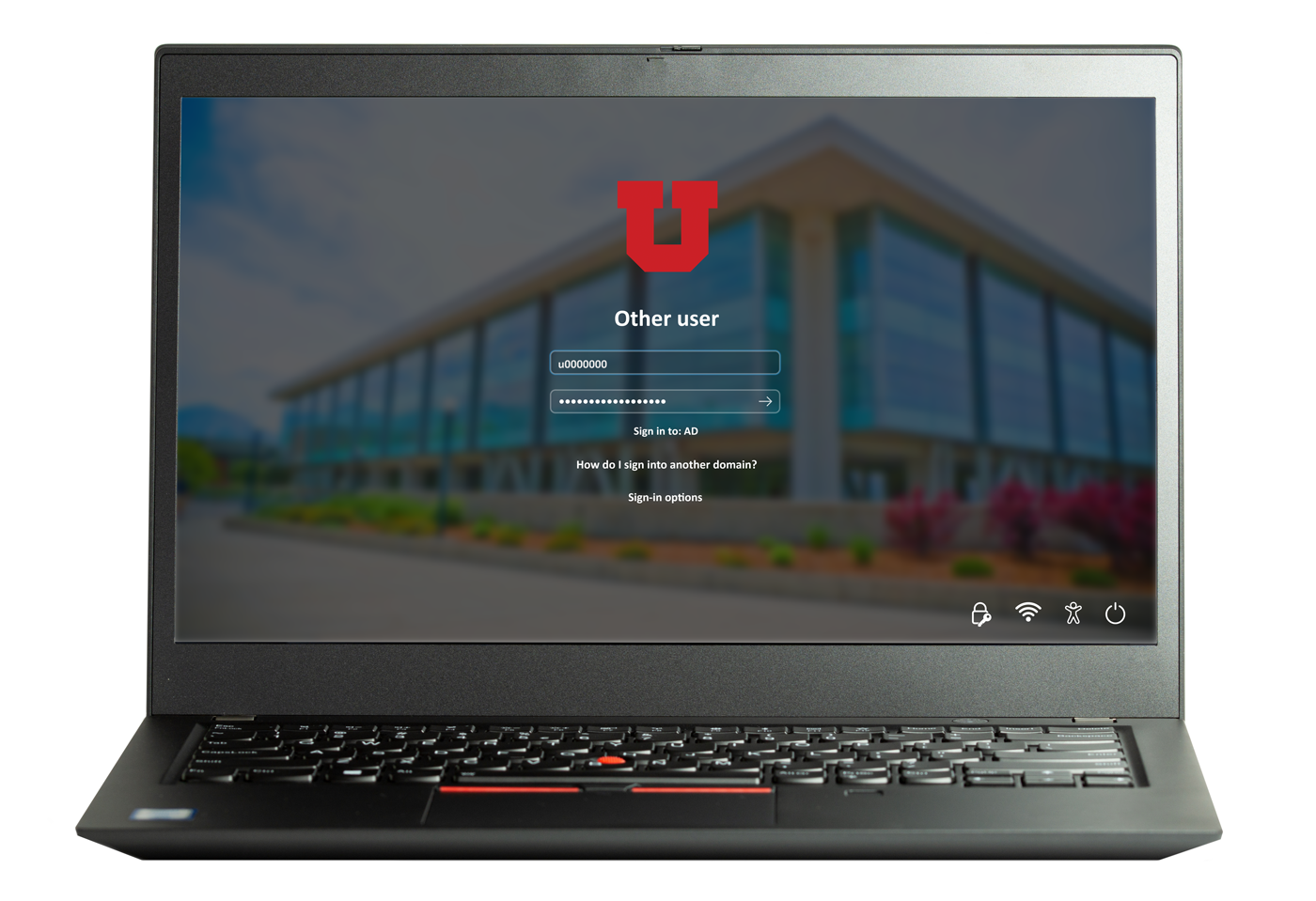
- Verify that WiFi is connected, when you first open the laptop it may take a few seconds to connect.

- Login with your uNID (u0000000) and your Campus password.
- Success! You have signed into the Windows laptop. This process creates a local login on the computer, so it might take a few minutes to load.
It is required that you are connected to a WiFi network to sign into the laptop.
- Click on the Internet icon in the lower right corner and connect to a wireless network.

- After you are connected to WiFi, click the Network Sign-In icon in the lower right corner

- Enter your uNID (u0000000) and university password and click "Sign In". Click on “Approve with U of U Duo” to complete signing in. Approve two-factor authentication (2FA) with Duo app.

- After you receive confirmation that you are connected, click Back and sign in with your uNID and password once more.

- Success! You have signed into the Windows laptop. This process creates a local login on the computer, so it might take a few minutes to load.
- After you are logged in: In the lower right corner, click the arrow to show hidden icons, click on the GlobalProtect globe icon, and click Disconnect.

For subsequent logins, simply enter your uNID and password to log into the computer.